Is Your Smartphone Spying on You? How to Conduct a Full Mobile Security Audit Right Now
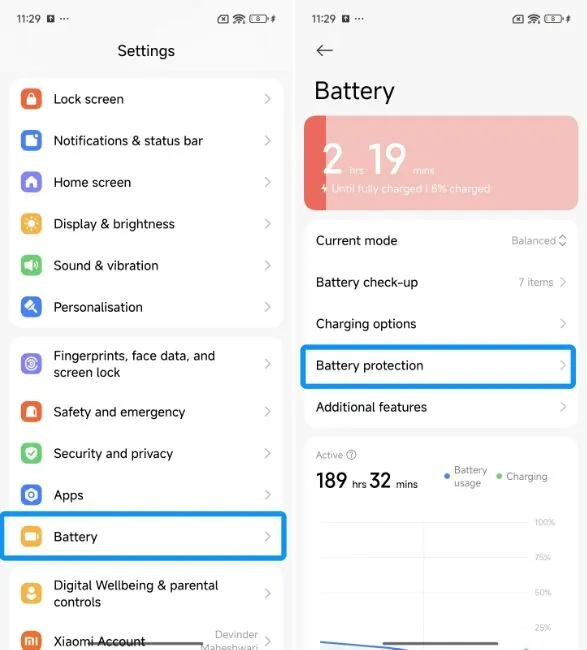
Photo: smartphone security audit battery settings permissions privacy, via cdn.beebom.com
Your smartphone is arguably the most personal device you own. It holds your banking credentials, your location history, your private conversations, and in many cases, access to your home security systems. Yet for millions of Americans, the apps installed on that device receive almost no scrutiny after the initial download. That oversight can be costly.
Background processes running on your phone are not always benign. Some applications—particularly free utilities, flashlight apps, weather widgets, and certain social media tools—are designed to collect data continuously, transmitting it to third-party servers while you sleep. The telltale sign? An inexplicably short battery life. If your phone is struggling to hold a charge and you have not recently changed your usage habits, that may not be a hardware problem. It may be a security problem.
At Kavach Mobile, we believe that protecting your digital life begins with understanding what is already living inside your device. The following audit process is designed to be thorough, practical, and accessible—regardless of whether you are using an Android device or an iPhone.
Why Background App Activity Is a Red Flag
Every app you install is granted a degree of system access. The question is how much access, and whether that access is proportionate to the app's stated function. A simple calculator app has no legitimate reason to access your microphone, location, or contact list. When an app requests permissions far beyond its core functionality, that is a significant warning sign.
Background activity compounds the concern. Many data-harvesting applications are engineered to run continuously in the background, periodically pinging remote servers with collected information. This behavior drains your battery because the processor, network radio, and GPS chip are all being kept active. According to cybersecurity researchers, some of the most aggressive data-collection apps can account for 20 to 30 percent of daily battery consumption on their own.
The data being collected can range from relatively benign browsing habits to deeply sensitive information: precise GPS coordinates, contact names and phone numbers, clipboard contents, and even audio snippets captured through the microphone.
Step One: Review Your Battery Usage Statistics
Both iOS and Android provide built-in tools to identify which applications are consuming the most power. This is your first diagnostic checkpoint.
On Android: Navigate to Settings → Battery → Battery Usage. You will see a ranked list of apps by power consumption over the past 24 hours or longer. Pay particular attention to any app that ranks highly but that you have not actively used. Background consumption listed separately from foreground consumption is especially telling.
On iPhone: Go to Settings → Battery. Scroll down to see the battery usage breakdown by app. Toggle between the last 24 hours and the last 10 days. If an app shows significant background activity relative to its screen-on time, that warrants a closer look.
Make a list of any apps that appear suspicious based on this review. Do not delete anything yet—proceed to the permissions audit first.
Step Two: Audit App Permissions Systematically
Permissions are the gateway through which apps access your device's sensitive functions. Reviewing them is one of the most impactful security steps you can take.
On Android: Go to Settings → Privacy → Permission Manager. This view allows you to see, by permission category, every app that has been granted access. Review the following categories with particular care: Location (especially "Allow all the time" grants), Microphone, Camera, Contacts, and Phone. Revoke any permissions that seem disproportionate to the app's purpose.
On iPhone: Navigate to Settings → Privacy & Security. Each category lists the apps that have requested and been granted that type of access. The same logic applies—if a retail coupon app has access to your microphone, that permission should be revoked immediately.
A useful rule of thumb: if you cannot articulate a clear, logical reason why an app needs a specific permission, remove that permission.
Step Three: Identify Unfamiliar or Rarely Used Apps
Scroll through your complete app library and honestly assess each application. Ask yourself three questions: Do I recognize this app? Do I use it regularly? Did I intentionally install it?
Unfamiliar apps can arrive on your device through several vectors—bundled software installations, compromised app store listings, or in some cases, physical access to your phone by another person. Any app you cannot account for should be treated as a potential threat.
Also flag apps that you downloaded once and have not opened in months. Dormant apps still carry permissions and may still be running background processes. They represent unnecessary attack surface on your device.
Step Four: Investigate Before You Delete
Before removing a suspicious app, take a moment to research it. Search the app's name alongside terms like "data privacy," "security concerns," or "malware" to see whether it has been flagged by cybersecurity organizations or reported in the media. The Federal Trade Commission (FTC) and the Electronic Frontier Foundation (EFF) both maintain resources on apps with problematic data practices.
Check the app's privacy policy if one exists. Look specifically for language about selling or sharing data with third parties. Vague language such as "trusted partners" or "affiliated entities" without further specification is a red flag.
Also examine the developer's other published apps. Disreputable developers frequently publish multiple low-quality apps under different names to maximize their data collection reach.
Step Five: Remove Culprits and Harden Your Remaining Apps
Once you have completed your investigation, uninstall any app that fails to meet a reasonable standard of trustworthiness. Do not simply disable it—full removal is the only way to ensure its background processes are terminated and its permissions revoked.
For apps you choose to keep, apply the principle of least privilege: grant only the permissions that are absolutely necessary for the app to function, and set location access to "While Using" rather than "Always" wherever possible.
Finally, enable your device's built-in security scanning tools. Android's Google Play Protect actively scans installed apps for malicious behavior. iPhone's sandboxed app architecture provides a degree of inherent protection, but it is not infallible—particularly if your device has been jailbroken.
Make Digital Hygiene a Recurring Practice
A mobile security audit is not a one-time event. New apps arrive, permissions drift, and threat actors continuously develop new methods of exploitation. Scheduling a quarterly review of your installed applications and their permissions is a reasonable and achievable standard for most users.
Your smartphone is a powerful tool, but it is also a potential liability if left unexamined. The few hours you invest in this audit could protect years' worth of personal data, financial information, and private communications. At Kavach Mobile, we consider this kind of proactive vigilance to be the foundation of genuine digital security—not an optional extra, but an essential habit for anyone who carries a connected device.