What Your Phone Reveals Before Anyone Types a Passcode
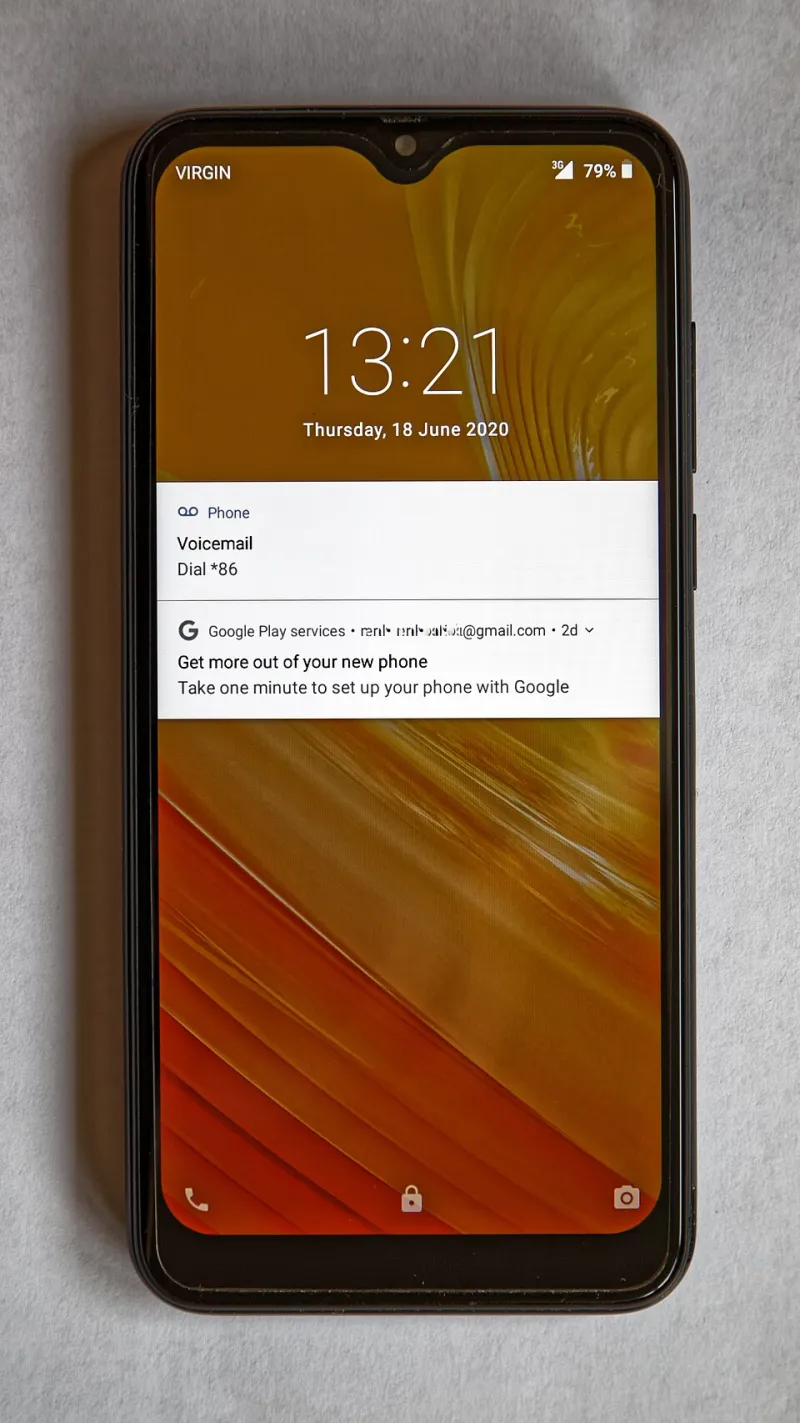
Photo: Acabashi, CC BY-SA 4.0, via Wikimedia Commons
A phone lying face-down on a table is not a locked drawer. The passcode protects what is inside, but the surface that lights up every thirty seconds was built to be readable at arm's length — by you, and by anyone else in the room. A sender name. A dental appointment. A six-digit verification code. The street where a package will be dropped. None of it requires a thumbprint.
That is the trade-off baked into every modern iPhone and Android handset: convenience on the outside, protection on the inside. The useful question is not whether lock screens show too much in general, but what yours shows in particular. Most people, when they finally look, are surprised.
The perimeter was never built to be private
The lock screen is a dashboard, not a vault door. Its entire job is to let you glance, decide, and move on without authenticating. Apple and Google have spent years making that glance richer — live activities, media controls, smart home toggles, calendar widgets, wallet cards — and every addition quietly widens the audience for information you considered personal.
Consider what a stranger seated beside you on a train can absorb in a few minutes without touching the device: your first name and photo on the wallpaper, the bank whose alert just arrived, the name of your child's school in a calendar widget, the fact that you are flying to Denver on Thursday, and the last four digits of an account referenced in a text. None of these is catastrophic alone. Together they are a reconnaissance file.
Run a ten-minute exposure test
The fastest way to understand your own risk is to simulate it. Set the phone down, lock it, and wait for the screen to go dark. Then sit at a normal distance — three to four feet, the distance of the person next to you at a counter — and answer these questions.
- What names and message fragments appear in previews?
- Do any notifications contain one-time passcodes or account balances?
- Which widgets are visible, and what do they reveal about location, calendar, or health?
- Can you pull down the control or quick settings panel while locked? What can be toggled there?
- Can you reach the camera, wallet, or smart home controls?
- If you ask the voice assistant a question, does it answer with personal data?
- What does the emergency information screen show if a stranger taps Emergency?
Write down what you find. That list is your priority order.
Notifications are the largest single leak
On iPhone, open Settings, then Notifications, then Show Previews. If it is set to Always, every message body renders on the lock screen. Change it to When Unlocked. Then walk the app list and set Show Previews individually for messaging, banking, email, and any app that handles health or identity — those deserve the strictest setting even if the global default is loose.
On Android, the path varies by manufacturer, but the effect is the same. Look under Settings, then Notifications, then Lock screen notifications, and choose the option that hides sensitive content until the device is unlocked. On Pixel devices the equivalent lives under Settings, then Display, then Lock screen. Samsung places it under Settings, then Lock screen, then Notifications. Where a per-app override exists, use it for anything financial.
There is a second layer that people overlook: the sender name itself. If your preview shows the bank name and the word declined, the message body barely matters.
Widgets, quick settings, and the shortcuts you forgot you enabled
Lock screen widgets are the newest offender and the least examined. A weather widget discloses your city. A calendar widget discloses your schedule. A health widget can disclose a medication reminder. Remove any widget whose contents you would not announce in a waiting room.
On iPhone, go to Settings, then Face ID and Passcode, and scroll to Allow Access When Locked. That list controls whether Control Center, the Wallet, reply-with-message, Home controls, and USB accessories work without authentication. Turn off anything you do not genuinely use from the lock screen; Control Center is the most consequential, because it allows airplane mode toggling, which can interrupt a device's ability to be located.
On Android, the comparable controls sit in the lock screen settings and, on some builds, in the security and privacy section. Disable lock screen access to quick settings tiles if the option exists, and reconsider Smart Lock or trusted-place unlocking, which can keep a phone open in exactly the locations where it is most likely to be left unattended.
The voice assistant is a lock screen microphone
Ask Siri or Google Assistant who you are, and many devices will read back your name and contact card. Ask it to call a name in your contacts and it may dial. Ask about your calendar and it may recite the day.
On iPhone, review Settings, then Siri and Search, and disable lock screen access if the convenience is not worth the exposure. On Android, examine the assistant's personal-results settings and the lock screen allowance, which is typically disabled by default but frequently enabled during setup by users who want hands-free access in the car.
The cable problem
A locked phone connected to an unfamiliar computer or charging kiosk is a phone negotiating with a stranger. iPhone users can restrict this under Settings, then Face ID and Passcode, then Allow Access When Locked, by turning off the accessory option; the device will then require an unlock before data flows over a wired connection. Android users should confirm that USB debugging is off in Developer options and that the device is in a locked state before plugging into anything public. Carry a power-only cable or a USB data blocker for airports and hotel rooms.
Emergency information: share enough, not everything
The emergency screen exists to save your life, and it should stay enabled. But it should not double as a full medical and residential profile. On iPhone, open the Health app, then Medical ID, and review what is set to show when locked — conditions, allergies, and medications are useful to a paramedic; a home address and insurance identifiers are not always necessary. Keep one emergency contact rather than five. On Android, the equivalent lives in the safety and emergency settings and in the emergency information section of the device settings.
A short checklist
- Previews set to show only when unlocked.
- Sensitive apps overridden individually.
- Widgets trimmed to those that reveal nothing personal.
- Control Center or quick settings access disabled from the lock screen.
- Voice assistant blocked from personal results while locked.
- Wired accessory access requiring an unlock.
- Emergency information reviewed, not purged.
- Find My or Find My Device left on, always.
None of these changes makes the phone less usable in any meaningful way. They simply move the line back to where it belongs: the lock screen becomes a clock again, rather than a bulletin board for the room.